What I'm trying to focus here is when multiple forms are published to same document library. What happens to these promoted fields. Is the sharepoint list smart enough to figure-out the common columns?
Sharepoint treats all column same and independently. If all attributes are same for a set of promoted filed then they represent same column.
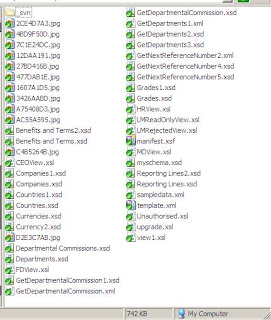
When fields are promoted in Infopath it generates some map behind the scene. This can be viewed in the manifest file using any text of xml editor. For every promoted field it generates a unique id (GUID). And a second map, that maps each promoted to a column. Columns are identified by another GUID.
So every time a new property promotion happens a new set of mapping gets generated. When this happens in two different form naturally all GUID will be different. Therefore even if two form have field with same display name when the are promoted they will generate two different set of mapping guid. And therefore after attaching to a list this fields will be displayed as separate column. Matter of fact it will look like duplicate column. But one of them will display value depending of the content type the current line item is generated from.
The solution is simple. Open the manifest file and make sure common fields have same filed Id and column id. Simply copy one set of mapping from one file and use it for another file. do remember to make sure local form filed reference is correct. I mean it's is referring to the correct local filed in each manifest file.
Republish the form and this time you will see list item generated from both content type are populating same column.
One thing to remember sharepoint will not automatically remove existing set of columns. I mean once you publish one content type and create any list item all columns related to this content type get permanently added to the list. They may not be visible to the current view but they are there. To remove this old column reference you have to recreate the column.
Simply download all item from the list. Recreate the list. republish your content type and upload old item again.
Column and list item realignment will not remove existing column. It will only populate all columns relevant and available with existing items.
Example of column mapping from a manifest file looks like this:
<xsf2:listPropertiesExtension>
  <xsf2:fieldsExtension>
   <xsf2:fieldExtension columnId="{afd78356-f9c9-4211-8167-7d7d70dc67fd}" readWrite="no" columnName="{E28D210E-FF60-401D-A63A-40AECE533A43}"></xsf2:fieldExtension>
   <xsf2:fieldExtension columnId="{26612320-1611-4f71-9197-0382144f7b9a}" readWrite="no" columnName="{32F2028F-BEF8-4B2C-AAE4-9F0753930D7A}"></xsf2:fieldExtension>
   <xsf2:fieldExtension columnId="{1DAB9B48-2D1A-47b3-878C-8E84F0D211BA}" readWrite="no" columnName="{5A28EC4B-B173-466F-8814-849B4F932146}"></xsf2:fieldExtension>
   <xsf2:fieldExtension columnId="{7cfc7f24-852d-4f78-b1b2-e0e68176d9ba}" readWrite="no" columnName="{D9F232A3-DD04-4B4D-9813-9E15E6549AB7}"></xsf2:fieldExtension>
   <xsf2:fieldExtension columnId="{c4e0f350-52cc-4ede-904c-dd71a3d11f7d}" readWrite="no" columnName="{A04C8AD0-074F-4160-8577-E298532A11BA}"></xsf2:fieldExtension>
   <xsf2:fieldExtension columnId="{1DAB9B48-2D1A-47b3-878C-8E84F0D211BA}" readWrite="yes" columnName="{0ACC2AC8-0890-496B-B524-D6FA0498C818}"></xsf2:fieldExtension>
   <xsf2:fieldExtension columnId="{260962da-788e-458a-82a5-e03bb7f6dc52}" readWrite="yes" columnName="{051DFADD-706C-411B-9A4E-7ABA223CAEA9}"></xsf2:fieldExtension>
   <xsf2:fieldExtension columnId="{212ec377-84c6-4c00-ad22-2cab2550fb50}" readWrite="yes" columnName="{00BF28EE-3601-42BA-A1F1-24C74B5A9B35}"></xsf2:fieldExtension>
   <xsf2:fieldExtension columnId="{2fdeded3-4b03-47af-8ac6-ca411d5603d4}" readWrite="yes" columnName="{91BB41AA-AD25-4C47-BFE8-E04F175F5AC2}"></xsf2:fieldExtension>
   <xsf2:fieldExtension columnId="{bb97a85d-0ee4-46ef-b1f1-0748cfa4c137}" readWrite="yes" columnName="{B463F993-2DAF-47E7-83D0-FD3837044858}"></xsf2:fieldExtension>
   <xsf2:fieldExtension columnId="{475a6571-ba0e-4d56-9364-d2ac728a323b}" readWrite="yes" columnName="{8B0055A4-7AE8-4C8F-882C-F0C5E01C90C4}"></xsf2:fieldExtension>
   <xsf2:fieldExtension columnId="{fce73a96-7bfa-44e9-8d1b-25d4aaa449ca}" readWrite="yes" columnName="{9535DA33-113B-4091-89AB-4ADC104A0F13}"></xsf2:fieldExtension>
   <xsf2:fieldExtension columnId="{2958362e-25af-4d8e-9938-50622a1c0e61}" readWrite="yes" columnName="{C8ECE69F-C5C9-47AF-8E40-17CE03D7F5C4}"></xsf2:fieldExtension>
   <xsf2:fieldExtension columnId="{0f26d0d9-9f4f-4de6-829d-a1994b26f7d7}" readWrite="no" columnName="{62A5E596-8726-4BBA-862C-3298BAB6808F}"></xsf2:fieldExtension>
   <xsf2:fieldExtension columnId="{19b6647c-8672-46f4-b4da-60c74da4cb04}" readWrite="no" columnName="{F086DE11-7848-40B4-95C4-B1A3CCE1374D}"></xsf2:fieldExtension>
   <xsf2:fieldExtension columnId="{9930e1c1-3067-47c1-ab8d-3eeb98679c3f}" readWrite="no" columnName="{B78D2E7D-C8AF-40BB-BAD4-D6D17156A91D}"></xsf2:fieldExtension>
   <xsf2:fieldExtension columnId="{b1733cd8-b3ce-42a6-990a-0b9a5955da5c}" readWrite="yes" columnName="{BABE6BC6-F248-4E36-8B86-215345352F89}"></xsf2:fieldExtension>
   <xsf2:fieldExtension columnId="{5e295b7a-4849-464e-9d56-92bef86869eb}" readWrite="yes" columnName="{25CF762C-D3BB-4F01-BEA8-7F76C4E09914}"></xsf2:fieldExtension>
   <xsf2:fieldExtension columnId="{7f358004-05e4-42ac-9fde-a253039e19ce}" readWrite="yes" columnName="{58E519A7-7FA5-4D37-BF5D-F3057BB2D719}"></xsf2:fieldExtension>
   <xsf2:fieldExtension columnId="{33a7da72-2997-4ebf-ad89-9603a478fad2}" readWrite="yes" columnName="{DFB32035-E22F-4EA7-8ED7-D36EFC99586A}"></xsf2:fieldExtension>
   <xsf2:fieldExtension columnId="{5571ace5-1274-4388-b2e6-02ea6c3c7c76}" readWrite="yes" columnName="{22D6961D-13BD-465F-8C30-FEF5B0FFC0B0}"></xsf2:fieldExtension>
   <xsf2:fieldExtension columnId="{230448c7-3b5b-40e1-8242-dba5c11656ad}" readWrite="yes" columnName="{14CB66B0-EA81-4B26-8ABF-E30C50B61DAB}"></xsf2:fieldExtension>
   <xsf2:fieldExtension columnId="{7205c21c-5eae-44b1-9b0e-787bb36de370}" readWrite="no" columnName="{E6B623CF-F7CD-41D5-9059-EC84FD4AD026}"></xsf2:fieldExtension>
   <xsf2:fieldExtension columnId="" readWrite="no" columnName="{C08C7115-ED51-4445-985A-0C747741F8BB}"></xsf2:fieldExtension>
   <xsf2:fieldExtension columnId="{eeccc9d8-3a7d-4fb9-9e12-3d72daa3c619}" readWrite="no" columnName="{C1EB52D6-7B01-4A00-BB60-F4279372861A}"></xsf2:fieldExtension>
   <xsf2:fieldExtension columnId="{27d7764c-ccfc-433d-828d-56beb602062a}" readWrite="no" columnName="{5FA48CEA-E192-4854-B862-70DBBDAEDBDE}"></xsf2:fieldExtension>
   <xsf2:fieldExtension columnId="{40577009-e6a2-44aa-b034-029c61e23f1d}" readWrite="no" columnName="{72522D66-2E9E-4BAA-9C84-8D9BF5F44A37}"></xsf2:fieldExtension>
   <xsf2:fieldExtension columnId="{dc455fba-75ab-40e2-8a54-d83ad8d70a6a}" readWrite="no" columnName="{AC0CDC6B-C9B3-4E4A-B341-AC5CC6408CBD}"></xsf2:fieldExtension>
  </xsf2:fieldsExtension>
 </xsf2:listPropertiesExtension>
<xsf:listProperties>
  <xsf:fields>
   <xsf:field name="Reference" columnName="{D9F232A3-DD04-4B4D-9813-9E15E6549AB7}" node="/my:myFields/my:referenceNumber" type="xsd:string"></xsf:field>
   <xsf:field name="Job Title" columnName="{A04C8AD0-074F-4160-8577-E298532A11BA}" node="/my:myFields/my:jobTitle" type="xsd:string"></xsf:field>
   <xsf:field name="Status" columnName="{0ACC2AC8-0890-496B-B524-D6FA0498C818}" node="/my:myFields/my:status" type="xsd:string"></xsf:field>
   <xsf:field name="Business Unit" columnName="{C8ECE69F-C5C9-47AF-8E40-17CE03D7F5C4}" node="/my:myFields/my:businessUnit" type="xsd:string"></xsf:field>
   <xsf:field name="Annual Salary" columnName="{62A5E596-8726-4BBA-862C-3298BAB6808F}" node="/my:myFields/my:annualSalary" type="xsd:double"></xsf:field>
   <xsf:field name="Country" columnName="{F086DE11-7848-40B4-95C4-B1A3CCE1374D}" node="/my:myFields/my:country" type="xsd:string"></xsf:field>
   <xsf:field name="Assigned To" columnName="{BABE6BC6-F248-4E36-8B86-215345352F89}" node="/my:myFields/my:assignedTo" type="xsd:string"></xsf:field>
   <xsf:field name="FDGroup Name" columnName="{25CF762C-D3BB-4F01-BEA8-7F76C4E09914}" node="/my:myFields/my:FDGroupName" type="xsd:string"></xsf:field>
   <xsf:field name="HRGroup Name" columnName="{58E519A7-7FA5-4D37-BF5D-F3057BB2D719}" node="/my:myFields/my:HRGroupName" type="xsd:string"></xsf:field>
   <xsf:field name="MDGroup Name" columnName="{DFB32035-E22F-4EA7-8ED7-D36EFC99586A}" node="/my:myFields/my:MDGroupName" type="xsd:string"></xsf:field>
   <xsf:field name="CEOGroup Name" columnName="{22D6961D-13BD-465F-8C30-FEF5B0FFC0B0}" node="/my:myFields/my:CEOGroupName" type="xsd:string"></xsf:field>
   <xsf:field name="Submitter Login Name" columnName="{14CB66B0-EA81-4B26-8ABF-E30C50B61DAB}" node="/my:myFields/my:submitterLoginName" type="xsd:string"></xsf:field>
   <xsf:field name="Division" columnName="{E6B623CF-F7CD-41D5-9059-EC84FD4AD026}" node="/my:myFields/my:division" type="xsd:string"></xsf:field>
   <xsf:field name="Last Modified Login Name" columnName="{C1EB52D6-7B01-4A00-BB60-F4279372861A}" node="/my:myFields/my:LastModifiedLoginName" type="xsd:string"></xsf:field>
   <xsf:field name="Current Salary" columnName="{5FA48CEA-E192-4854-B862-70DBBDAEDBDE}" node="/my:myFields/my:currentSalary" type="xsd:double"></xsf:field>
   <xsf:field name="Staff Name" columnName="{72522D66-2E9E-4BAA-9C84-8D9BF5F44A37}" node="/my:myFields/my:candidateName" type="xsd:string"></xsf:field>
   <xsf:field name="Currency" columnName="{AC0CDC6B-C9B3-4E4A-B341-AC5CC6408CBD}" node="/my:myFields/my:salaryCurrency" type="xsd:string"></xsf:field>
  </xsf:fields>
 </xsf:listProperties>




 Posts
Posts


